1Drill★ Our pick~3 min
Which kind of AI?
One job at a time. Which region of the map fits best? Get 5 right to complete.
Correct 0/5Streak 0Round 1
Level 1 · Beginner/First steps with AI/The AI Landscape Tour
 Understand stage
~20 min lesson
Beginner
14 practice exercises (optional)
6 quiz questions
Understand stage
~20 min lesson
Beginner
14 practice exercises (optional)
6 quiz questions

The exercises and the quiz are not narrated.
By the end you'll be able to


"AI" is not one thing. It's a family of tools that make or do different things, and the first skill is matching the job to the right kind.

Ingrid, our retired engineer, has the garden's 50th-anniversary booklet to make, and a list of jobs to go with it. Each one needs a different kind of AI. Answer the quick Try it at the end of each episode to tick off an item.
Episode 1 of 6
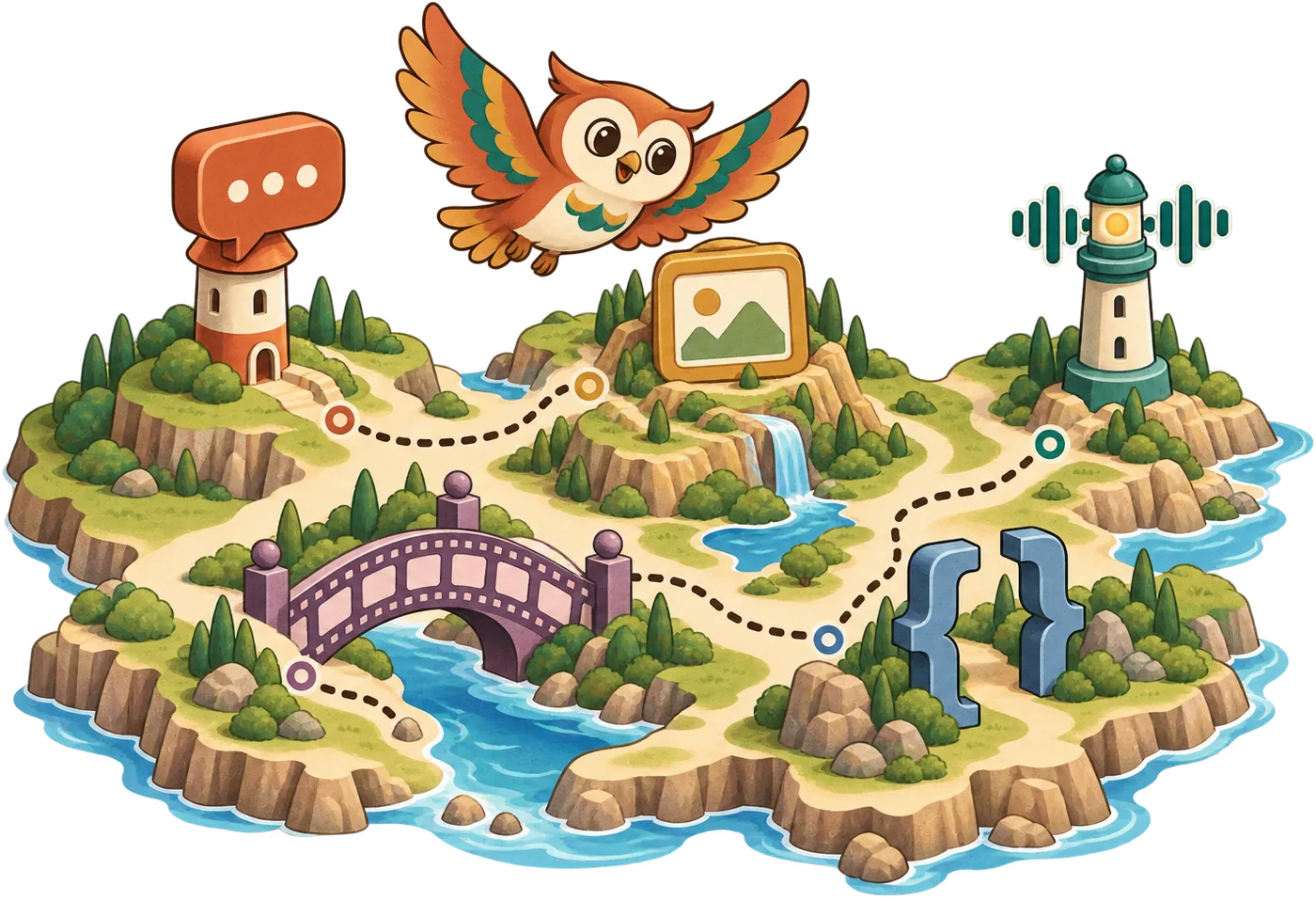
ReadThere are hundreds of AI tools, and new ones every week. Learning them one by one is a losing game. Learning the kinds is not. A good way to group them is by what they make or do: five regions on a map.
Many products live in more than one region. A chat assistant might also make pictures. That's fine: the map is about the job, not the brand.
SeeIngrid's item 1: five regions, with example jobs in each.
The garden fair needs a poster. "Make a picture for the poster": which region is that?
Episode 2 of 6
ReadChat assistants are the all-rounders. You ask in plain language, and they write, explain, suggest, and answer.
Many now also have a slower "thinking" or reasoning mode. Instead of answering straight away, the model works through the problem step by step first. That takes longer, sometimes much longer. It's worth it for tricky, multi-step questions: planning, puzzles, anything with lots of conditions. For a quick question, the normal mode is fine. (Mode names vary between assistants and change often; as of September 2026.)
SeeIngrid's item 2: "My compost heap smells of ammonia and it's slimy. What's wrong?"
Example answers on this page are written for the lesson. Real assistants will word things differently.
Which job deserves thinking mode? Tap the better one.
Episode 3 of 6
ReadSome AI tools make things other than text. Image tools draw a picture from your description. Audio tools make voices and music, and can also turn speech into text (transcription). Video tools make short clips.
They're wonderful for drafts, mock-ups, and fun. Know their weak spots: text inside an AI image is often garbled, small details like hands or signs go wrong, and keeping a character or place looking the same across pictures is hard. Likeness and copyright questions are in lesson 10.
SeeIngrid's item 3: the booklet cover, and a little extra.
Which kind of tool made each? Guess silently, then tap to flip.
Episode 4 of 6
ReadWriting is chat's home turf: drafting, rewording, shortening, explaining.
Facts are different. A plain chat answer comes from patterns it learned, and it usually doesn't show where a fact came from. When you need facts, use a tool that answers with sources, or one that works only from documents you give it. Then do the part that matters most: open the source and check that it really says so.
SeeIngrid's item 4: "When was our community garden founded?"
Both answers are written for this lesson. Only one of them can be checked.
The plain chat said: "The garden was founded in 1974." What should Ingrid say next?
Episode 5 of 6
ReadA lot of AI doesn't live in a separate app at all. It's built into tools you already use. Email programs summarize long threads and draft replies. Documents rewrite and shorten. Spreadsheets turn messy lists into tidy tables. Slide tools suggest layouts. Your phone can search your photos by what's in them. Video-call apps can write up a meeting.
Often, the easiest AI to use is the one that's already in your app.
SeeIngrid's item 5: the volunteer rota, as it arrived by email.
Flip the switch to run the spreadsheet's AI tidy-up. Which version would you rather send the volunteers?
plot 3 Mon Wed - Priya / plot 7 weekends only Tom + Aisha, plot 1 Tue? (ask Harold) ... 12 = Fri Jo, 3 also Sat Ingrid, 7 Tue Leo if exams ok
| Plot | Day | Volunteer | Note |
|---|---|---|---|
| 1 | Tue | Harold | to confirm |
| 3 | Mon, Wed | Priya | |
| 3 | Sat | Ingrid | |
| 7 | Sat, Sun | Tom, Aisha | weekends only |
| 7 | Tue | Leo | if exams allow |
| 12 | Fri | Jo |
Episode 6 of 6
ReadThen there's the frontier, the part that makes headlines. Agents are tools that take actions for you, like filling in a form or booking a table. They're arriving, but they're early and need supervising. In science, AI has had real breakthroughs: predicting the shapes of proteins earned a Nobel Prize in 2024, and AI weather forecasts now rival traditional ones. Robots move slowest of all, because the physical world is hard. A weed looks a lot like a seedling.
Headlines often blur three things: what you can use today, what's emerging, and what might come someday.
SeeHarold's headline. Tap the one word that tells you it isn't here yet.

The map only becomes yours when you've used each region. These exercises get you trying different kinds of AI on real things. Do as many as you like; they never block the quiz. Your progress and notes are saved in this browser.
Want more? All 14 are below, grouped by type.
Quick and auto-checked, right here on the page. A new mix every time you play.
One job at a time. Which region of the map fits best? Get 5 right to complete.
Pick the best option for each gap.
Describe each of Ingrid's jobs with the switches, and the picker suggests a kind of tool. Match all three jobs to complete.
Suggested:
Done with real AI tools, on your own things. Tick the checklist honestly, then mark it done.
Pick a real factual question you're curious about (when something local was built, how a thing works, a statistic). Ask it in a plain chat assistant, then in a research tool that shows sources. Compare.
| Tool | Trust | Did it show a source? |
|---|---|---|
Make a picture you'll actually use: a card, a poster, a cover, a profile banner. Use any free image tool (most chat assistants can make images too).
Ask a research tool a factual question and open two of its sources. Does each source actually say what the answer claims?
Pick one real task (planning an event, learning a topic, sorting a list). Try it in a chat assistant, a research tool, and a feature inside an app you already use. Which kind helped most?
Start the clock. Find AI features already inside three apps you use (email, documents, photos, maps, keyboard, video calls). Try one of them.
Think of the jobs in your own week. Fill in which kind of tool you'll reach for; your map builds itself below.
Pick a photo of your own with no people in it (a plant, a street, a meal). Describe it yourself in two sentences. Then ask an assistant that accepts images to describe it. Compare.
For a week, try one kind of AI you didn't use the day before: chat, research, an image, your voice, a feature in an app. Tick each day you do. Five days out of seven completes it.
Explain the five regions to a friend, or write it here, in three sentences. Then grade yourself.
Harder, for when you want to stretch.
In an image tool, get a poster for a real event in a single message. No follow-ups: if it misses, open a new chat and rewrite the whole message. The picture must meet all five:
Three outputs, written for this lesson. For each, decide which kind of tool most likely produced it, then reveal.
Answer all six correctly to finish the lesson. Wrong answers get feedback and another try; only correct answers count.
Tap a job on the left, then the kind of tool that fits it on the right. Matched pairs get the same color.
Three of these belong to the same kind of tool. Tap the odd one, then say why.
Ingrid needs four things: a cover picture, sources for the history, a readable rota table, and her voice memo as text. Pick tools until all four are covered, with nothing paid and at most 3 new accounts.
Ingrid needs sources for the booklet. The first answer missed. Pick the best next move.
Ingrid asks a plain chat assistant and a research tool: "When was the garden founded?" Predict first: which answer will include a source she can open?
Which of these can most people use today, on a free plan?
 Answer all six quiz questions correctly to finish this lesson.
You can match a job to the right kind of AI, and tell today from someday.
 Keep thisYour cheat card for this lesson
Headlines blur them. Words like "soon" and "will" mean: not here yet.
This card is also collected into the section cheatsheet for First steps with AI, a one-page printable summary of all three lessons.